
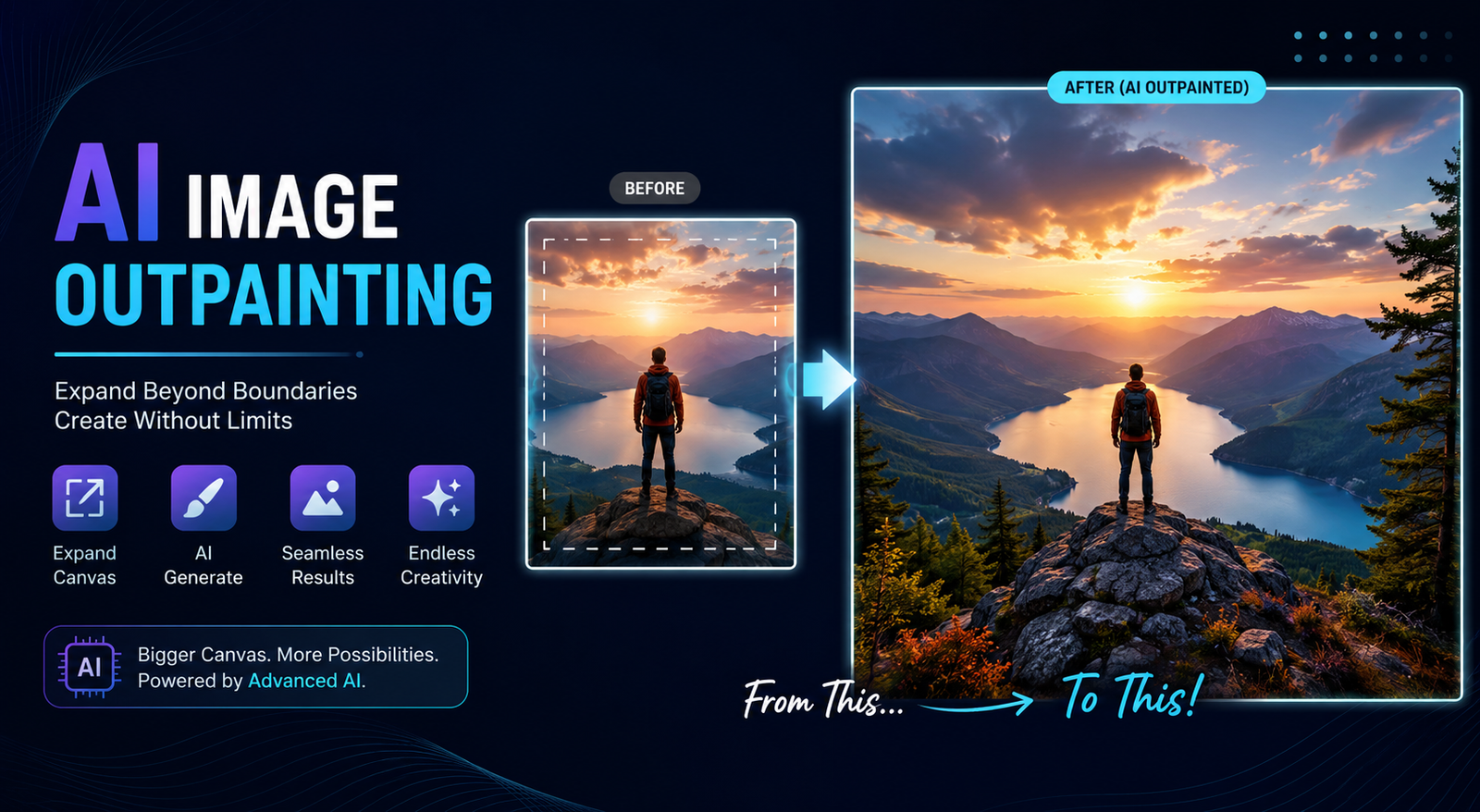
Have you ever had a great photo that was simply too tightly cropped for the design you needed? Maybe a portrait needs more space around the subject, a product photo needs to fit a wide banner, or a landscape needs extra room for text. AI image outpainting can solve these problems by generating new visual content beyond the original edges of an image.
Unlike traditional resizing, AI outpainting does not simply stretch existing pixels. It analyzes the image and creates a realistic-looking continuation that matches the surrounding colors, textures, lighting, and composition. This makes it useful for photographers, designers, marketers, content creators, and anyone who needs to change an image’s dimensions without sacrificing the original subject.
In this guide, you’ll learn what AI image outpainting is, how it works, how to use it, which use cases make the most sense, and how to get more natural results. You’ll also find practical prompts and troubleshooting tips to help you expand photos with less trial and error.
What Is AI Image Outpainting?
AI image outpainting is an image-editing technique that uses artificial intelligence to extend an image beyond its original borders. Instead of cropping the existing composition or stretching it to fit a new format, an AI model generates additional pixels that are designed to blend naturally with the original image.
For example, imagine you have a square photo of a person standing in front of a beach. You want to turn it into a 16:9 website banner. Rather than cutting off the person or distorting the photo, an AI image expander can generate additional beach, sky, or surrounding scenery on the sides.
The important thing to understand is that outpainting generates a plausible continuation. It does not reveal information that was actually present outside the original frame. If you use AI image outpainting free tools or paid software, the generated area should therefore be treated as synthetic content.
AI Image Outpainting vs. Traditional Image Expansion
Traditional resizing changes the dimensions of existing pixels. Outpainting creates new visual content.
| Method | Adds New Content? | Main Purpose | Best Use |
| Cropping | No | Remove unwanted areas | Reframing |
| Stretching | No | Change dimensions | Basic resizing |
| Upscaling | No new scene area | Increase resolution | Larger output |
| Inpainting | Yes | Replace an internal area | Object removal/editing |
| AI image Outpainting | Yes | Extend image borders | New composition or aspect ratio |
This distinction makes outpaint AI particularly useful when the original image is good but the framing is not.
How Does AI Image Outpainting Work?
The process is relatively simple from the user’s perspective, but several things happen behind the scenes.
1. The AI Analyzes the Existing Image
The model examines visual information near the edges of the image. Depending on the tool, this can include colors, textures, objects, lighting, shadows, perspective, and overall composition.
A photo with a blue sky near its top edge provides useful context for generating more sky. A forest image gives the model information about trees, foliage, lighting, and colors that can be continued into the new area.
2. You Expand the Canvas
Instead of changing the original image itself, you create additional space around it. You can usually expand the image to the left, right, top, bottom, or several directions.
The amount of expansion matters. A small extension usually gives the model plenty of nearby context. A very large expansion asks it to invent considerably more content, which can increase inconsistencies.
3. The AI Generates the New Area
The AI then creates content for the empty space. Some tools automatically infer what belongs there, while others allow you to provide a text prompt.
For example:
Extend the natural mountain landscape, matching the existing lighting, atmospheric perspective, sky color, and terrain.
A good prompt gives the AI additional guidance without unnecessarily describing elements that are already visible.
4. The Generated Area Is Blended With the Original
The final goal is continuity. The new section should look like it was part of the original composition.
Lighting, colors, shadows, perspective, and textures all need to make sense. If these elements don’t match, the result can have a visible seam or artificial appearance.
AI Image Outpainting vs. Inpainting, Upscaling, and Generative Fill
These terms are often confused because they all involve AI image editing.
Outpainting expands beyond the existing image.
Inpainting changes or replaces an area inside the image.
Upscaling increases image resolution and attempts to add or reconstruct finer detail, but it does not primarily create a new scene beyond the borders.
Generative fill can refer to AI-generated content used to fill a selected area and may overlap with outpainting when that selected area extends beyond the original canvas.
A simple rule is:
Need more image? Use outpainting. Need to replace something? Use inpainting. Need more resolution? Use upscaling.
How to Outpaint an Image With AI
Most modern AI image expansion tools follow a similar workflow.
Step 1: Choose a Good Source Image
Start with an image that has reasonable quality and enough visual context around the area you want to extend.
For example, if you’re expanding a portrait horizontally, an uncluttered background is usually easier for AI to continue than a complicated crowd.
Step 2: Upload Your Image
Open your chosen AI image outpainting tool and upload the original image. Look for features called Outpaint, Expand, Image Expand, AI Expand, Generative Expand, or Canvas Expand.
Step 3: Expand the Canvas
Choose the direction in which you need more space.
For a website banner, you might expand both sides. For a portrait where the subject is too close to the top edge, you may expand upward.
Step 4: Select an Aspect Ratio
Think about the final destination before generating.
Common examples include:
- 1:1: Square social posts or product images
- 4:5: Portrait-oriented social content
- 16:9: Website banners, presentations, and video thumbnails
- 9:16: Vertical social content and mobile formats
For example, turning a 1:1 product photo into a 16:9 hero image may require substantial horizontal expansion while keeping the product centered.
Step 5: Add an AI Image Outpainting Prompt
If the tool supports prompts, describe the visual continuation you want.
Avoid writing a completely new image prompt. Instead, tell the AI how the existing scene should continue.
Step 6: Generate Multiple Variations
The first result isn’t always the best one. Generate several versions when possible and compare the edges, objects, lighting, and perspective.
Step 7: Refine the Result
If something looks strange, reduce the expansion size or modify the prompt. Smaller, iterative expansions can often produce more consistent results than one enormous expansion.
Best AI Image Outpainting Tools
There isn’t one universally best outpainting AI for every workflow. The right choice depends on your editing experience, budget, desired output quality, and whether you need advanced controls.
| Tool Type | Best For | Ease of Use | Prompt Support | Typical Advantage |
| Dedicated AI expander | Quick image expansion | Easy | Often | Simple workflow |
| Professional AI editor | Detailed editing | Moderate | Often | Advanced controls |
| Generative design platform | Designers and creators | Easy–Moderate | Yes | Creative workflows |
| Open-source workflow | Advanced users | Difficult | Yes | Customization |
| Free online expander | Beginners | Very easy | Varies | Quick experiments |
If you’re searching for the best outpainting AI, don’t judge a tool only by its marketing claims. Test how well it preserves faces, products, architecture, shadows, and background textures.
Tools such as Recraft and other generative image platforms can be useful for practical expansion workflows, while Stable Diffusion-based workflows may appeal to advanced users who want greater control.
Best AI Outpainting Prompts
Prompts can make a significant difference when the surrounding scene isn’t obvious.
Portrait Prompt
Extend the background naturally around the person while preserving facial features, hairstyle, clothing, proportions, lighting, and original composition.
Landscape Prompt
Continue the landscape beyond the existing frame, matching the mountains, sky, vegetation, lighting, colors, and atmospheric perspective.
Product Photography Prompt
Extend the clean studio background while preserving the product’s exact shape, proportions, lighting, reflections, and natural shadow.
Website Banner Prompt
Expand the scene horizontally with a natural continuation of the existing background, leaving clean negative space suitable for website headline text.
Social Media Prompt
Extend the existing background naturally to create a balanced vertical composition while keeping the main subject unchanged and centered.
A useful rule for AI image outpainting prompts is to describe continuity rather than redesign the image.
What Can You Use AI Image Outpainting For?
Fixing Tightly Cropped Photos
If someone’s head, clothing, or another important object is too close to the edge, outpainting can create additional breathing room.
Changing Image Aspect Ratios
This is one of the most useful applications. A landscape photograph can become a wider banner without cutting away important parts of the scene.
Website and Advertising Banners
Outpainting can create negative space around a subject so designers have room for headlines, buttons, or promotional copy.
Social Media Content
A single image can be adapted for square, portrait, and landscape formats without repeatedly cropping the subject.
Product Photography
E-commerce images sometimes need different dimensions for websites, ads, marketplaces, and promotional graphics. Outpainting can extend the surrounding background while leaving the product itself intact.
YouTube Thumbnails
A tightly framed image can be expanded into a wider composition while preserving the central subject.
Creative Artwork
Artists can use AI outpainting to explore compositions beyond their original canvas, add scenery, or create a wider visual story.
How to Get Better AI Outpainting Results
Good results depend on both the source image and the way you expand it.
Expand gradually. Don’t immediately generate a huge area if a smaller extension will accomplish the goal.
Preserve visual context. The AI needs useful information around the boundary to make a convincing continuation.
Match the lighting. If the original scene has warm sunset lighting, don’t ask for a cool daylight extension.
Respect perspective. Buildings, roads, furniture, and other structured objects need consistent perspective.
Keep important subjects away from the edge. Faces, hands, products, and complex objects are harder to continue when they are cut directly by the expansion boundary.
Generate several variations. AI generation is probabilistic, so one variation may contain an obvious error while another looks natural.
Inspect the boundary at full size. A result that looks good as a thumbnail may reveal seams, duplicated objects, or texture problems when viewed closely.
Common AI Outpainting Problems and How to Fix Them
| Problem | Likely Cause | Practical Fix |
| Visible seam | Poor transition | Regenerate or expand gradually |
| Changed face | Subject too close to edge | Keep the face inside the original area |
| Duplicate objects | Ambiguous context | Simplify the prompt |
| Wrong lighting | Insufficient guidance | Describe existing lighting |
| Distorted architecture | Perspective mismatch | Mention perspective and structure |
| Repeating textures | Pattern continuation failure | Try a smaller expansion |
| Strange anatomy | Body intersects boundary | Reposition or regenerate |
| Distorted text | AI struggles with exact typography | Add text afterward in an editor |
These problems don’t necessarily mean the tool is bad. Generative models can struggle when the boundary contains complicated objects, text, reflections, or unusual geometry.
AI Image Outpainting for Different Image Types
Portraits: Keep the face and body inside the original canvas when possible. Let AI extend simpler background areas.
Landscapes: Outpainting usually works well when the scene contains broad areas such as sky, water, sand, or vegetation.
Product photos: Give the model enough information about the background and preserve the product itself rather than asking it to recreate the product.
Architecture: Use smaller expansions because perspective and repeating structures can be difficult for AI to maintain.
Artwork: Experiment with different prompts to continue the style, colors, brushwork, or visual atmosphere.
Is AI Image Outpainting Free?
Yes, some platforms provide free AI image outpainting or limited free generations, while others require credits or a subscription.
Free tools are useful for experimentation, occasional image expansion, and simple projects. Paid services may offer higher resolution, more generations, advanced editing controls, commercial features, or faster processing.
Before using an AI photo outpainting free service for professional work, check its current licensing, privacy, and usage terms. “Free to use” does not automatically mean that every generated image can be used commercially without restrictions.
Is AI Outpainting Safe for Commercial Use?
It depends on the specific tool and its terms.
If you’re creating advertising graphics, client work, product images, or other commercial content, check:
- Commercial-use rights
- Ownership and licensing terms
- Privacy policies
- Uploaded-image retention
- Model-training policies
- Output restrictions
- Brand and copyright requirements
Also remember that AI-generated extensions can introduce incorrect logos, text, people, or objects. Always inspect the final image before publishing it.
AI Outpainting vs. Regenerating the Entire Image
Outpainting is usually the better option when the original image is already strong but the framing needs adjustment.
For example, if you have an excellent product photograph but need more background on both sides, there’s little reason to recreate the product from scratch.
Regeneration makes more sense when the original image has major problems or you want an entirely different composition.
The simple rule is:
Keep what works, and outpaint what is missing.
Conclusion
AI image outpainting turns a tightly cropped image into a more flexible composition by generating realistic-looking content beyond its original borders. It’s particularly useful for changing aspect ratios, creating banners, adding background space, adapting social media images, and preparing product photos for different layouts.
The key to better results is not simply choosing a powerful model. Start with a suitable image, expand gradually, give the AI useful context, use focused prompts, and inspect the generated boundaries carefully.
Whether you’re experimenting with a free AI image outpainting tool, using a professional editor, or exploring Stable Diffusion-based workflows, the same principle applies: preserve what already works and use AI to intelligently extend what is missing.
Frequently Asked Questions
What is AI image outpainting?
AI image outpainting uses generative AI to extend an image beyond its original borders. It creates new visual content that attempts to match the original scene’s lighting, colors, textures, and perspective.
Is AI image outpainting free?
Some tools offer free generations or limited free plans, while others charge through subscriptions or credits. Always check the current terms before relying on a free service.
What is the difference between outpainting and inpainting?
Outpainting adds content beyond the existing image boundaries. Inpainting generates or replaces content inside an existing area of an image.
Can AI outpainting change an image’s aspect ratio?
Yes. One of the most common uses of AI outpainting is changing an image from formats such as 1:1 or 4:5 into wider or taller compositions without simply cropping the original subject.
Can AI expand a photo without changing the subject?
Usually, yes, especially when the subject remains within the original image. For best results, avoid placing important facial features or complex objects directly on the expansion boundary.
What are the best prompts for AI outpainting?
The best prompts describe how the existing scene should continue. Mention important details such as lighting, environment, perspective, textures, and desired negative space rather than completely redesigning the image.
Why does AI outpainting sometimes look unnatural?
AI can struggle with complicated edges, faces, hands, architecture, reflections, text, and repeating patterns. Smaller expansions, better prompts, and multiple generations can improve the result.
You May Also Read: AI Clothes Changer Online Free
