
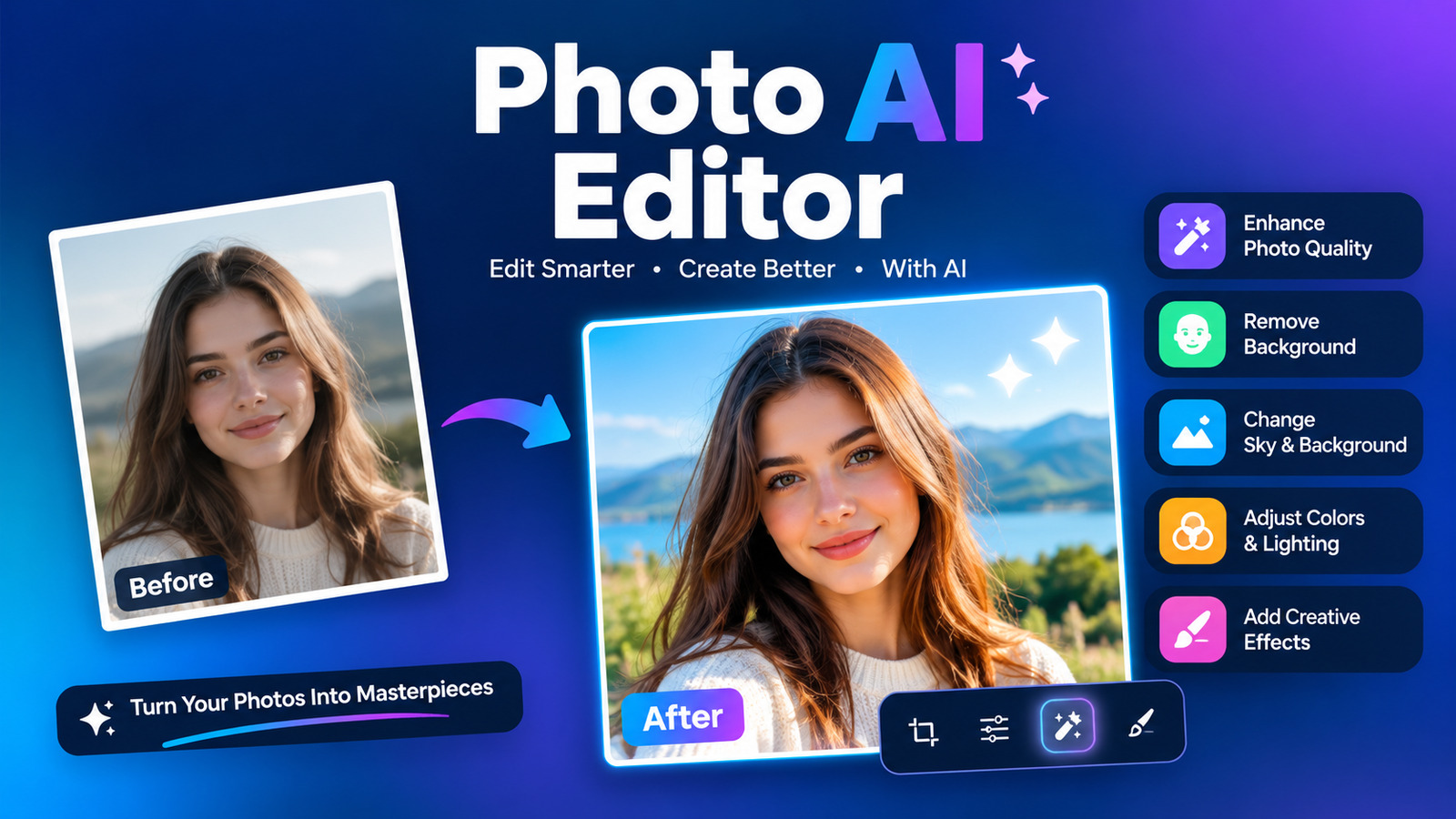
Editing photos no longer requires hours of manual adjustments. A photo ai editor can analyze an image, identify subjects and backgrounds, and automatically improve areas such as lighting, color, sharpness, and composition. More advanced tools can also remove unwanted objects, replace backgrounds, enhance faces, upscale low-resolution images, and expand photos beyond their original boundaries.
Whether you are editing personal pictures, product images, blog graphics, or professional photography, AI can simplify repetitive tasks while leaving you in control of the final result. Some tools work in a browser, while others are available as desktop software or mobile apps. There are also free options for users who only need basic editing.
This guide explains how AI photo editing works, what features matter, how to choose an editor, and how to get better results without making your photos look artificial.
What Is a Photo AI Editor?
A photo ai editor is software that uses artificial intelligence and machine-learning techniques to automate or assist with photo editing. Instead of manually adjusting every part of an image, you can often select a task and let the software analyze the picture and make appropriate changes.
For example, an AI editor can recognize a person’s face separately from the background, detect an unwanted object, or identify areas that need better exposure. It can then apply an edit while preserving important details.
This makes AI editing useful for both beginners and experienced photographers. A beginner may use automatic enhancement, while a professional may use AI for repetitive tasks before making final manual adjustments.
AI Photo Editing vs Traditional Editing
Traditional photo editing usually requires users to make adjustments themselves. AI-powered editing automates many of these steps.
| Feature | AI Photo Editing | Traditional Editing |
| Automation | High | Usually lower |
| Ease of use | Often beginner-friendly | Can require more experience |
| Speed | Fast for repetitive tasks | Can take longer |
| Object selection | Often automatic | Usually manual or semi-manual |
| Creative control | Depends on the tool | Usually extensive |
| Batch editing | Common in professional tools | Depends on software |
AI does not necessarily replace traditional editing. In many workflows, the two work best together. AI can handle repetitive corrections, while a person reviews the result and makes creative or precise adjustments.
How Does a Photo AI Editor Work?
Most AI photo editors follow several steps behind the scenes.
Image Analysis
When you upload a picture, the software analyzes its visual information. Depending on the tool, it may identify faces, people, objects, backgrounds, colors, lighting conditions, and image quality.
This analysis allows the editor to understand which parts of the image should be changed.
Automated Editing
After analyzing the picture, the AI applies adjustments based on the selected feature. For example, an enhancement tool might improve exposure, reduce noise, sharpen details, and balance colors.
Some editors allow you to control the intensity instead of accepting the automatic result exactly as it is.
Generative Editing
More advanced systems can generate or reconstruct parts of a photograph. This can be useful for removing objects, extending an image, or creating a new background.
However, generated content is not necessarily a recovery of the original scene. The AI may create plausible-looking details that were not actually present in the source image, so important photographs should always be reviewed carefully.
What Can a Photo AI Editor Do?
The capabilities vary between tools, but modern AI editors can perform many common editing tasks.
Enhance Image Quality
AI enhancement can improve photos that look dull, soft, dark, or noisy. Common adjustments include:
- Sharpness
- Clarity
- Exposure
- Contrast
- Color balance
- Noise reduction
- Detail enhancement
This is especially useful when the original image was taken in poor lighting or with a low-quality camera.
Remove Backgrounds
Background removal is one of the most useful AI features. Instead of manually tracing around a subject, AI can identify the foreground and separate it from the background.
This is particularly useful for:
- Product photography
- Profile pictures
- Online stores
- Marketing graphics
- Social media images
The result can often be exported with a transparent background or placed over a different scene.
Remove Unwanted Objects
An AI object remover can identify a selected distraction and reconstruct the surrounding area.
For example, you could remove:
- Photobombers
- Wires
- Signs
- Trash
- Small objects
- Background distractions
Results depend heavily on the complexity of the image. Removing a small object from a simple background is generally easier than removing a large subject from a detailed scene.
Retouch Portraits
AI portrait editing can simplify common retouching tasks. Depending on the software, features may include skin smoothing, blemish removal, teeth whitening, eye enhancement, and subtle lighting adjustments.
The key is moderation. Excessive retouching can remove natural skin texture and make a face look unrealistic.
Upscale Low-Resolution Photos
AI upscaling increases an image’s dimensions while attempting to create sharper-looking details.
It can be useful when preparing an older or smaller image for a larger display. However, users should understand that upscaling cannot magically recover every detail that was never captured. Aggressive enhancement can sometimes create unnatural textures, especially around faces, text, hair, and fine patterns.
Fix Lighting and Colors
A dark or poorly balanced photograph can often benefit from AI-assisted exposure and color correction.
Common improvements include:
- Brightening underexposed areas
- Correcting white balance
- Improving contrast
- Recovering visible shadow detail
- Reducing overly strong highlights
- Making colors appear more balanced
Expand an Image
AI image expansion allows users to extend the edges of a photograph. This can be helpful when you need to change the composition or fit an image into a different aspect ratio.
For example, a square product photo could be expanded into a wider image for a website banner.
Replace or Generate Backgrounds
Some editors go beyond removing a background. They can replace it with another image or generate a new background based on a description.
This can be useful for product marketing, portraits, social media graphics, and creative photography.
Best Uses for AI Photo Editing
A photo ai editor can serve very different purposes depending on the user.
| User | Common Goal | Useful AI Features |
| Beginners | Improve everyday pictures | Auto enhancement, retouching |
| Photographers | Process large batches | Batch editing, color correction |
| Bloggers | Prepare website images | Resize, enhancement, compression |
| Ecommerce sellers | Improve product photos | Background removal, cleanup |
| Social creators | Create polished posts | Retouching, expansion |
| Marketers | Produce campaign visuals | Background replacement, object removal |
| Businesses | Maintain consistent images | Enhancement, batch processing |
For Personal Photos
Casual users can use AI to improve selfies, travel pictures, family photographs, and social media images without learning complicated editing software.
For Ecommerce
Online sellers can remove backgrounds, clean product images, correct lighting, and create consistent visuals for product listings.
For Bloggers
Bloggers can use AI editing to resize images, remove distractions, improve quality, and prepare visuals for articles and social media.
For Professional Photography
Professional photographers can use AI to accelerate repetitive editing, especially when working with large numbers of photographs. AI can help with culling, color correction, cropping, and other routine tasks while the photographer maintains final creative control.
Online vs Desktop vs Mobile AI Photo Editors
Choosing the right platform depends on your workflow.
Online editors are convenient because they usually require no installation. They work well for quick edits, occasional users, and people working across different devices.
Desktop editors are generally more appropriate for photographers and advanced users who need detailed controls, large file support, or batch processing.
Mobile editors are convenient for quick edits, selfies, social media posts, and images captured directly with a smartphone.
If you only need occasional adjustments, an online tool may be enough. A professional processing hundreds of photographs may benefit from dedicated desktop software.
Free vs Paid AI Photo Editors
A Free AI app for photo editing can be useful when you only need basic features. Free plans may include enhancement, simple retouching, background removal, or limited AI credits.
Paid versions may provide higher-resolution exports, additional features, batch processing, more AI credits, or fewer restrictions.
Before choosing a tool, check:
- Export resolution
- Watermark policies
- AI credit limits
- File-size restrictions
- Commercial-use terms
- Available editing features
- Storage limits
- Privacy policies
Don’t choose a tool solely because it advertises unlimited AI editing. Check what “unlimited” actually means and whether high-resolution exports or advanced features are included.
How to Use a Photo AI Editor
The process is usually straightforward.
Step 1: Choose a High-Quality Original
Start with the best source image available. AI can improve a photograph, but a poor-quality original can limit the final result.
Step 2: Upload the Photo
Open the editor and upload your image. Check the supported file formats and maximum file size.
Step 3: Select an AI Feature
Choose the task you actually need, such as enhancement, background removal, object removal, retouching, or upscaling.
Step 4: Review the Automatic Result
Don’t immediately export the image. Zoom in and inspect faces, hair, edges, text, and important objects.
Step 5: Adjust the Intensity
If the editor provides sliders or manual controls, reduce overly strong effects. Natural-looking edits are usually more convincing than extreme transformations.
Step 6: Compare With the Original
Use a before-and-after view when available. This helps you identify changes that may have gone too far.
Step 7: Export at the Correct Quality
Select an appropriate file format and resolution based on your intended use. A website image may require different settings than a print-ready photograph.
How to Choose the Right Photo AI Editor
There is no single tool that fits every workflow. Instead, consider what you actually need to accomplish.
Beginners
Look for a simple interface, automatic enhancement, easy exports, and useful free features.
Photographers
Prioritize RAW support, batch processing, color controls, professional export options, and compatibility with your existing workflow.
Ecommerce Sellers
Background removal, object cleanup, consistent image processing, and high-resolution exports are particularly useful.
Social Media Creators
Look for mobile access, portrait retouching, resizing, image expansion, and fast export options.
Designers
Advanced masking, generative editing, layers, precise controls, and high-resolution output may be more important than one-click enhancement.
Key Features to Look For
Before choosing an AI editor, consider this checklist:
| Feature | Why It Matters |
| Background removal | Quickly isolates subjects |
| Object removal | Cleans distracting areas |
| AI upscaling | Helps enlarge smaller images |
| Portrait retouching | Simplifies facial editing |
| Noise reduction | Improves low-light photos |
| Generative editing | Enables more advanced changes |
| Image expansion | Helps change composition |
| Color correction | Improves overall balance |
| Batch editing | Saves time with multiple images |
| High-resolution export | Useful for professional output |
A tool does not need every feature to be useful. Choose features according to your actual editing requirements.
Common Mistakes to Avoid
AI makes editing easier, but automatic does not always mean perfect.
Over-retouching faces: Excessive smoothing can remove natural texture.
Accepting every AI change: Always review important areas before exporting.
Aggressive upscaling: Increasing resolution too much can introduce artificial details.
Using poor source images: AI works best when the original contains enough useful visual information.
Ignoring privacy: Don’t upload sensitive or client photographs without understanding how the service handles your files.
Forgetting the original: Keep an untouched copy before applying major edits.
Privacy and Security Considerations
Before uploading personal or professional images, read the editor’s privacy information.
Important questions include:
- Are uploaded images stored?
- How long are files retained?
- Are images used to train AI models?
- Can you delete uploaded files?
- Is local processing available?
- Is an account required?
- How are client images protected?
This is especially important for photographers handling private client images or businesses working with confidential product and marketing materials.
How to Get Better AI Photo Editing Results
A few simple practices can significantly improve your results:
- Start with the highest-quality original available.
- Make one major adjustment at a time.
- Keep AI effects subtle when editing portraits.
- Inspect edges after background removal.
- Check faces and text at full resolution.
- Compare the edited version with the original.
- Export according to the final destination.
- Keep a backup of the original photograph.
AI should be treated as an editing assistant rather than a replacement for judgment. The strongest results often come from combining automatic improvements with a final human review.
Is a Photo AI Editor Worth Using?
For many editing tasks, AI can save considerable time. It is particularly useful for repetitive work such as background removal, object cleanup, basic enhancement, resizing, and batch processing.
However, AI editing has limitations. It may misunderstand complicated images, alter small details, produce unrealistic retouching, or generate details that were not present in the original.
For that reason, the best workflow is often AI first, human review second. Let the software handle repetitive adjustments, then make the final decisions yourself.
Conclusion
A photo ai editor can make everyday and professional image editing considerably faster. From improving lighting and removing unwanted objects to retouching portraits, removing backgrounds, and upscaling images, AI can handle many repetitive tasks in seconds.
The right tool depends on your needs. Beginners may prefer a simple online or mobile editor, while photographers and businesses may need batch processing, advanced controls, and high-resolution exports. Regardless of the platform, always review AI-generated changes and keep your original images safe.
If you are ready to simplify your workflow, start with the features you actually need, test the results on a few images, and choose an editor that gives you enough control to produce natural-looking results.
Frequently Asked Questions
What is a photo AI editor?
A photo AI editor is software that uses artificial intelligence to automate or assist with tasks such as image enhancement, background removal, object removal, retouching, upscaling, and color correction.
Is there a free AI photo editor?
Yes. Many services offer free plans or limited free features. However, restrictions may apply to export resolution, AI credits, watermarks, file sizes, or advanced features.
Can AI edit photos automatically?
Yes. Many AI editors can automatically analyze an image and apply corrections to areas such as exposure, color, sharpness, noise, and composition. Users should still review the result before exporting.
Can AI remove objects from photos?
Yes. Object-removal tools can identify a selected object and reconstruct the surrounding area. Results are generally easier when the background is simple and consistent.
Can AI improve a low-quality photo?
AI can improve sharpness, reduce noise, adjust lighting, and upscale certain images. However, it cannot reliably recover every detail that was absent from the original photograph.
Is AI photo editing safe?
Safety depends on the individual service and its privacy practices. Before uploading sensitive images, review its data-retention, deletion, security, and AI-training policies.
What is the difference between an AI photo editor and an AI image generator?
An AI photo editor primarily modifies an existing image. An AI image generator creates new visual content from prompts or other inputs. Some modern tools combine both capabilities.
You May Also Read: Alysa Liu
