


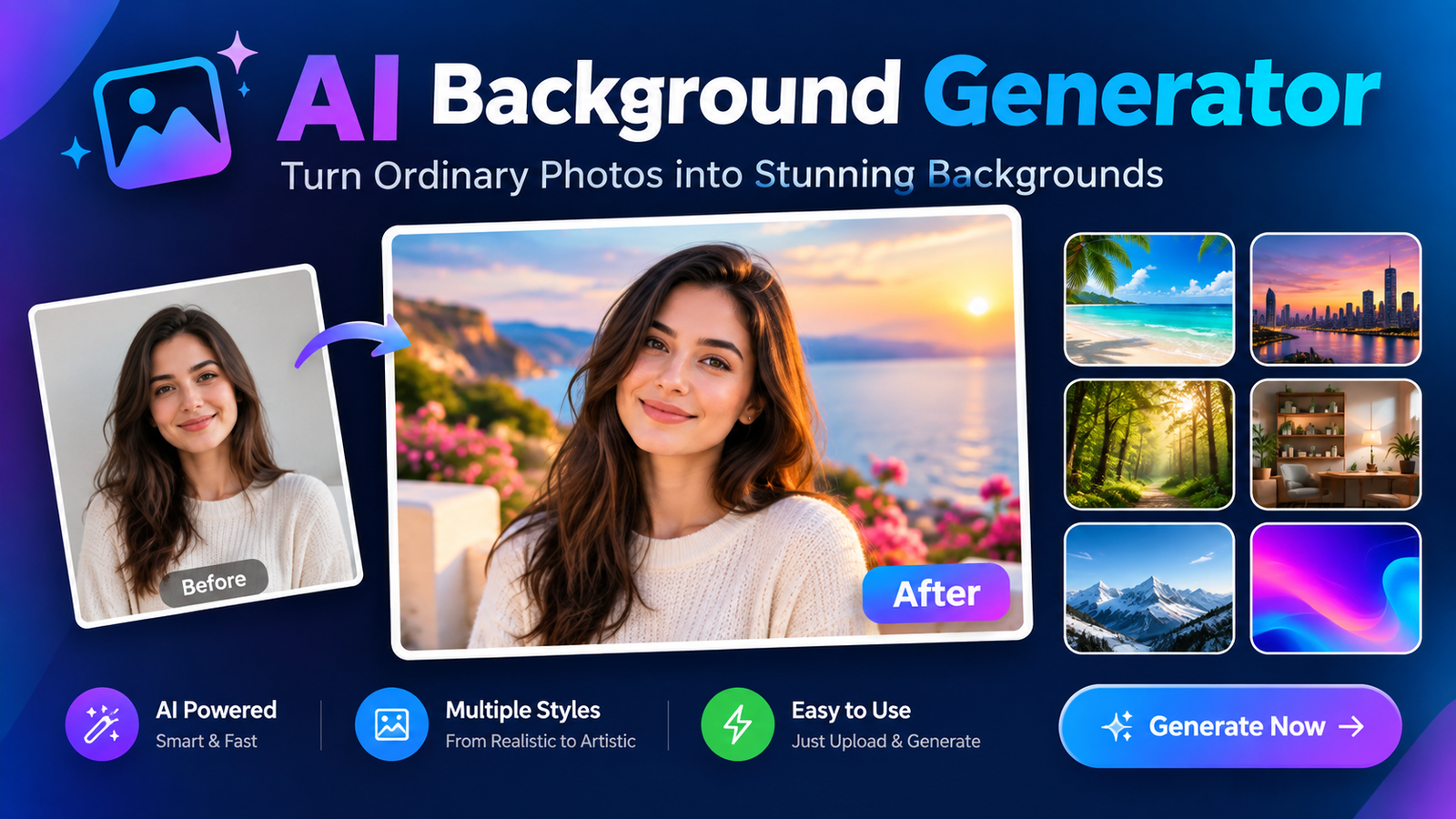
An AI background generator makes it easier to create, replace, and customize image backgrounds without spending hours in Photoshop or taking new photos. Instead of manually cutting out a subject and building a scene from scratch, AI can analyze an image and generate a background that matches the subject, lighting, and overall composition.
Whether you are creating product photos, social media posts, portraits, advertisements, presentations, or YouTube thumbnails, an AI background generator can turn a simple image into something more polished. Many tools also combine background removal, generative editing, text prompts, and image enhancement in one workflow.
The key, however, is knowing which tool to use and how to write effective prompts. This guide explains how the technology works, where it is useful, how to create better results, and what to look for when choosing a tool.
What Is an AI Background Generator?
An AI background generator is an image-editing or generative AI tool that creates a new background based on a text prompt, reference image, existing photograph, or combination of these inputs.
For example, you could upload a product photo taken against a plain wall and ask the AI to place the product in a luxury studio, modern office, marble showroom, or outdoor environment. The AI generates the requested scene while attempting to preserve the main subject.
Some tools generate backgrounds from scratch, while others first remove the existing background and then replace it with an AI-generated scene.
AI Background Generator vs. Background Remover
These two tools are related but perform different jobs.
| Feature | Background Remover | AI Background Generator |
| Removes an existing background | Yes | Often |
| Creates a new background | No | Yes |
| Uses text prompts | Usually limited | Often |
| Creates realistic scenes | No | Yes |
| Useful for product photos | Yes | Yes |
| Creative background variations | Limited | Extensive |
A background remover is useful when you simply want a transparent or plain image. An AI background generator is more useful when you want to create an entirely new environment.
How Does an AI Background Generator Work?
Most AI background tools follow a relatively simple process.
1. Upload an Image
Start with a clear image containing the subject you want to keep. This might be a person, product, piece of clothing, food item, or another object.
A high-resolution image with clear edges usually gives the AI more information to work with.
2. Detect the Subject
The AI identifies the foreground subject and separates it from the existing environment. Good tools can recognize complex edges such as hair, clothing, product outlines, and transparent objects.
3. Generate the Background
You then describe the environment you want. The AI interprets details such as location, colors, materials, lighting, mood, and photographic style before generating a new scene.
4. Match the Scene
More advanced tools attempt to make the generated background fit the original subject. This can involve matching shadows, perspective, depth, and light direction.
5. Refine and Export
If the first result is not right, generate another variation or modify the prompt. Once the image looks correct, export it in the required format and resolution.
Best AI Background Generators
The right tool depends on what you are creating. Some platforms are designed for ecommerce photography, while others are better suited to creative image editing or general-purpose generation.
When comparing an AI background generator, look at image quality, prompt controls, image upload options, free usage, output resolution, commercial licensing, and editing capabilities.
| Feature | What to Check | Why It Matters |
| Image upload | JPG, PNG, etc. | Determines your workflow |
| Text prompts | Prompt-based generation | Gives greater creative control |
| Background replacement | Subject preservation | Useful for existing photos |
| Resolution | HD/high-resolution output | Important for publishing |
| Free plan | Credits or limits | Useful for testing |
| Reference images | Image-based guidance | Helps control style |
| Batch generation | Multiple images | Useful for ecommerce |
| Commercial rights | License terms | Important for businesses |
Rather than choosing a tool based only on its feature list, test it with the type of images you actually plan to create.
Free AI Background Generator Options
Searching for a free AI background generator can produce many options, but “free” does not always mean unlimited.
Some tools provide a limited number of generations each day or month. Others offer free previews but charge for high-resolution downloads. Watermarks, account requirements, and commercial-use restrictions can also apply.
Before using a free tool for business content, check:
- Number of free generations
- Download resolution
- Watermarks
- Export formats
- Commercial-use rights
- Image storage policies
- Whether an account is required
If you are researching an AI background generator blog free option, pay particular attention to these restrictions instead of judging a tool only by whether it has a free button.
How to Use an AI Background Generator
Creating a new background does not require advanced design skills.
Step 1: Select a Good Image
Choose an image where the main subject is sharp and clearly separated from the original background. Avoid heavily blurred or poorly exposed photographs when possible.
Step 2: Upload the Image
Add your image to the generator and allow it to detect the foreground. Some tools automatically remove the existing background.
Step 3: Write a Specific Prompt
Instead of saying “make a nice background,” describe the scene you actually want.
For example:
Minimal luxury skincare studio, warm beige tones, soft window lighting, white marble surface, subtle natural shadows, realistic commercial product photography.
Step 4: Generate Several Versions
The first result may not be the most suitable. Generate several variations and compare the lighting, composition, shadows, and overall realism.
Step 5: Refine the Result
If the background looks artificial, modify the prompt. You can request softer lighting, fewer objects, a different camera angle, more negative space, or a simpler environment.
Step 6: Download the Final Image
Choose the appropriate resolution and file format for your destination, whether it is a website, marketplace, advertisement, social platform, or presentation.
How to Write Better AI Background Prompts
Prompt quality has a major impact on the result.
A useful formula is:
Environment + surface + lighting + color + mood + style + composition + preservation instructions
For example:
Modern coffee shop interior, dark wooden table, warm afternoon sunlight, neutral brown and cream palette, cozy atmosphere, realistic commercial photography, shallow depth of field, preserve the product shape and label.
Tell AI What to Preserve
This is especially important when editing an existing photograph.
Tell the generator to preserve:
- Product shape
- Face and facial features
- Clothing
- Logo
- Text and labels
- Colors
- Proportions
- Pose
- Main subject details
This reduces the chance of unwanted changes.
Use Negative Space Strategically
If the image will contain text, ask for empty space in the appropriate area.
For example:
Futuristic technology background with the subject on the right side, dark blue atmosphere, subtle glowing elements, clean empty space on the left for headline text.
This is particularly useful for advertisements, presentations, thumbnails, and social media graphics.
20 AI Background Prompts You Can Copy
Product Photography
1. Luxury product:
Luxury studio background, soft directional lighting, elegant marble surface, neutral colors, subtle shadows, realistic commercial photography.
2. Natural product:
Bright natural environment with greenery, warm sunlight, wooden surface, soft shadows, realistic lifestyle photography.
3. Minimal ecommerce:
Clean white studio background, soft diffused lighting, subtle floor shadow, premium ecommerce product photography.
4. Cosmetic product:
Elegant beige bathroom setting, marble counter, soft morning light, minimal decor, luxury beauty campaign aesthetic.
5. Seasonal product:
Warm autumn background with subtle leaves, natural golden lighting, premium commercial photography, clean composition.
Portraits
6. Professional headshot:
Modern professional office, soft window lighting, neutral colors, realistic corporate photography.
7. Outdoor portrait:
Beautiful natural park background, golden-hour lighting, shallow depth of field, realistic photography.
8. Studio portrait:
Minimal studio background, soft gradient, professional lighting, clean editorial portrait style.
9. Creative portrait:
Dark artistic environment, subtle colored lighting, cinematic atmosphere, realistic portrait photography.
10. Travel portrait:
Elegant European street background, natural daylight, realistic depth and perspective, lifestyle photography.
Social Media and Content
11. Instagram:
Modern pastel background, soft lighting, clean composition, subtle decorative elements, social media aesthetic.
12. TikTok:
Energetic modern background, vibrant lighting, dynamic composition, clean central subject area.
13. YouTube:
Futuristic technology background, dramatic lighting, strong contrast, empty space for thumbnail text.
14. Creator workspace:
Modern creative studio, desk setup, soft ambient lighting, realistic photography, uncluttered composition.
15. Marketing graphic:
Premium branded environment, clean background, balanced lighting, generous negative space for promotional text.
Business and Creative
16. Presentation:
Minimal corporate background, soft blue-gray gradient, clean geometric elements, professional presentation design.
17. Website hero:
Modern architectural interior, natural light, sophisticated neutral palette, wide composition with empty text space.
18. Abstract:
Elegant abstract flowing shapes, smooth gradients, subtle depth, high-end digital design.
19. Futuristic:
Advanced digital environment, glowing interfaces, atmospheric lighting, realistic futuristic technology aesthetic.
20. Artistic:
Dreamlike painted landscape, atmospheric light, soft textures, creative editorial artwork.
AI Background Generator Use Cases
An AI background generator is useful far beyond basic photo editing.
Product Photography
Ecommerce sellers can turn simple product photographs into lifestyle scenes without organizing a separate photoshoot for every variation.
For example, a skincare bottle can be placed on marble beside plants, while a sports product can be shown in a gym environment.
Portrait Photography
Photographers and individuals can replace distracting backgrounds with professional studios, offices, outdoor locations, or creative environments.
This can be useful for professional profiles, portfolios, social media, and marketing materials.
Social Media Content
Creators can generate visually consistent backgrounds for Instagram posts, TikTok graphics, Pinterest images, and promotional content.
For AI background generator blog TikTok searches, users may be particularly interested in vertical compositions and backgrounds that leave space for captions or overlays.
YouTube Thumbnails
A generated background can help create stronger thumbnail compositions. Ask the AI to place the main subject on one side and leave clear space for the title on the other.
Presentations and Websites
Businesses can create subtle backgrounds for presentations, landing pages, banners, and blog graphics without relying entirely on stock photography.
Best Background Styles to Generate With AI
You can generate almost any visual direction, but some styles work particularly well:
- Minimalist studio
- Luxury marble
- Natural outdoor
- Office and corporate
- Abstract gradients
- Futuristic technology
- Neon environments
- Paper textures
- Seasonal scenes
- Lifestyle interiors
- Soft pastel designs
- Cinematic environments
Choose a style based on the purpose of the image. A clean product listing generally needs a different background from a YouTube thumbnail or creative advertisement.
How to Make AI Backgrounds Look Realistic
A visually attractive background can still look fake if it does not match the foreground.
Match the Lighting
If the subject is illuminated from the left, the generated environment should generally support a similar light direction.
Add Natural Shadows
A contact shadow helps make a product or person appear grounded instead of floating above the background.
Match Perspective
The horizon, camera angle, and scale of background objects should make sense relative to the foreground.
Keep the Subject at the Correct Scale
An oversized product or tiny person can immediately make an AI-generated scene look unnatural.
Avoid Overly Busy Backgrounds
Too many objects can compete with the main subject. Simpler scenes are often more effective for ecommerce and marketing graphics.
Common AI Background Problems and Fixes
| Problem | Likely Cause | Solution |
| Subject looks cut out | Missing shadow | Add realistic contact shadows |
| Lighting looks unnatural | Mismatched light source | Specify lighting direction |
| Product changes shape | Prompt is too broad | Tell AI to preserve the product |
| Background is distracting | Too many details | Request a minimal scene |
| Perspective looks wrong | Scene mismatch | Specify camera angle |
| Edges look poor | Low-quality source | Upload a clearer image |
| Colors clash | Different color temperatures | Define a consistent palette |
Always inspect the final image closely, especially when it contains faces, product labels, logos, text, or other important details.
AI Background Generator vs. Traditional Photo Editing
AI generation and traditional editing are not necessarily competing workflows.
| Factor | AI Background Generation | Traditional Editing |
| Speed | Generally fast | Can require more manual work |
| Creative variations | Easy to generate | Often manually created |
| Technical skill | Usually lower | Often higher |
| Fine control | Depends on the tool | Extensive |
| Automation | Often strong | More manual |
| Consistency | Requires careful prompting | Highly controllable |
For quick variations, AI can be useful. For highly precise commercial compositions, traditional editing may still provide greater control.
How to Choose the Right AI Background Generator
Before committing to a tool, consider what you actually need.
Look for strong image quality if your images will be published commercially. Check prompt controls if you want creative environments. Reference-image support can be valuable when you need a particular visual style.
Also investigate output resolution, free limits, batch processing, privacy policies, and commercial licensing. A tool that looks attractive at first may not fit your workflow once you reach its free-generation limits.
If you plan to process hundreds of product images, batch capabilities and consistency may matter more than having dozens of artistic styles.
Is an AI Background Generator Safe for Commercial Images?
Commercial use depends on the specific platform and its current terms.
Before using generated backgrounds for advertisements, product listings, or client projects, review the tool’s licensing rules. Pay attention to ownership, commercial permissions, reference-image rights, and restrictions involving trademarks or copyrighted material.
You should also avoid uploading confidential customer photographs or sensitive business images unless you understand how the platform handles uploaded content.
AI Background Generator Best Practices
For consistently better results:
- Start with a high-quality source image.
- Use specific prompts rather than vague descriptions.
- Tell the AI what must remain unchanged.
- Match lighting and perspective.
- Generate multiple variations.
- Keep important subjects clear.
- Use negative space when text will be added.
- Check shadows and reflections.
- Inspect faces, logos, and product labels.
- Export at an appropriate resolution.
- Check licensing before commercial use.
Conclusion
An AI background generator can simplify everything from product photography and portrait editing to social media design, presentations, advertisements, and YouTube thumbnails. Instead of manually building every scene, you can describe the environment you want and generate multiple variations within minutes.
The best results come from more than simply pressing “generate.” Start with a quality image, write specific prompts, preserve important subject details, and carefully check lighting, shadows, perspective, and edges. Whether you need a quick free solution or a more advanced commercial workflow, comparing tools against your actual requirements will help you build a more reliable image-generation process.
Frequently Asked Questions
What is an AI background generator?
An AI background generator is a tool that creates or replaces image backgrounds using artificial intelligence. It can generate environments from text prompts, reference images, or an existing photograph.
Is there a free AI background generator?
Yes, some tools offer free generations or limited free plans. However, restrictions may include watermarks, limited credits, lower resolution, or commercial-use limitations.
Can AI generate a background from a photo?
Yes. Many AI image editors allow you to upload a photo, identify the subject, and generate a new background around it.
What is the difference between an AI background generator and a background remover?
A background remover eliminates the existing background, usually leaving transparency or a plain backdrop. An AI background generator can create a new scene to replace the original.
How do I write a prompt for an AI background?
Describe the environment, lighting, colors, mood, style, perspective, and composition. Also tell the AI which parts of the original subject should remain unchanged.
Can AI background generators create product photos?
Yes. They can create studio, lifestyle, seasonal, and branded environments around existing product photographs. The final image should always be checked for realistic shadows, perspective, product proportions, and label accuracy.
How can I make AI-generated backgrounds look realistic?
Match the background’s lighting, perspective, scale, colors, shadows, and depth with the original subject. A clear source image and specific prompt can also improve the result.
You May Also Read: Morgan Wallen
