
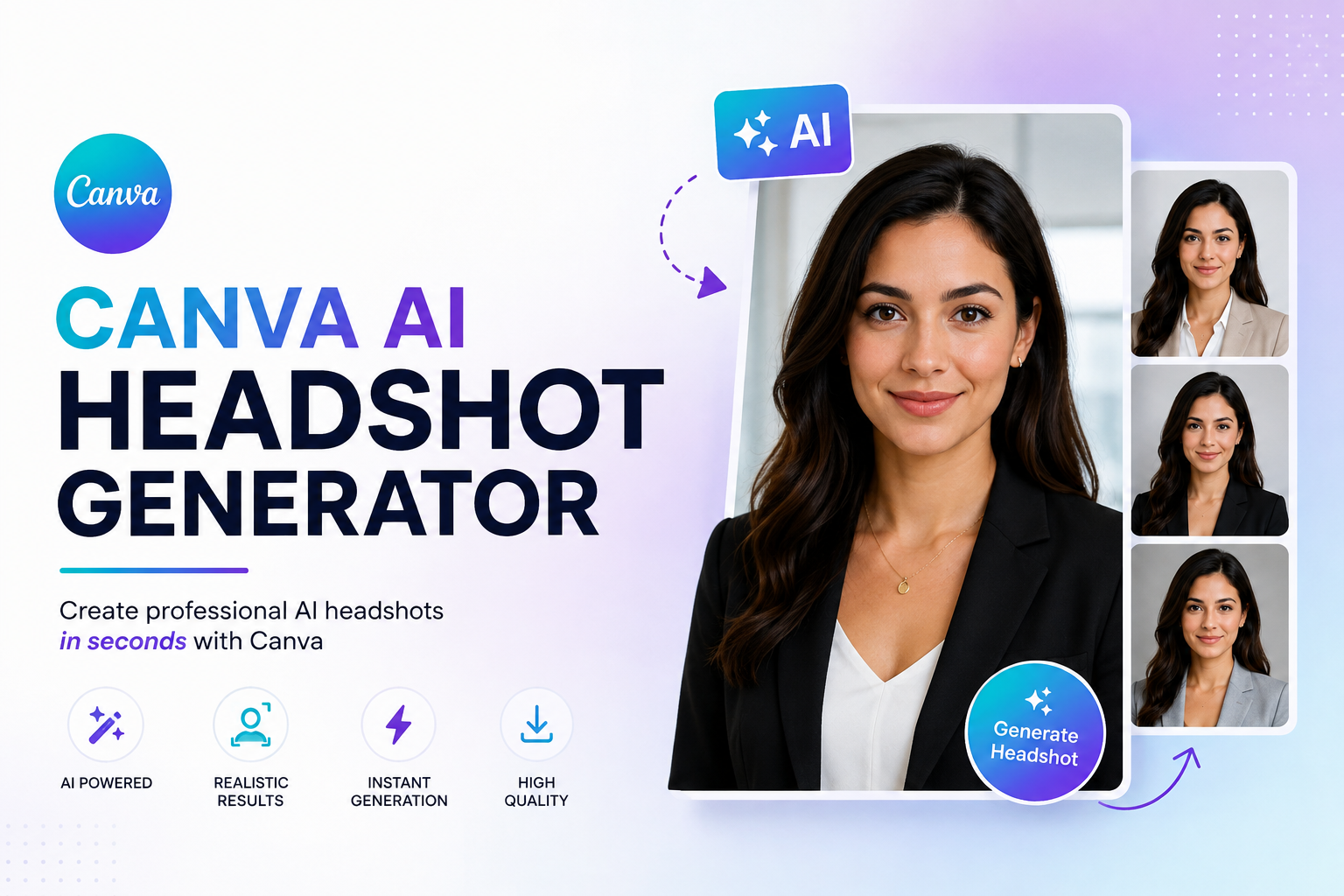
A professional headshot can make a big difference on LinkedIn, a resume, portfolio, company website, or social media profile. The problem is that getting a studio-quality photo traditionally means finding a photographer, arranging a session, and paying for professional editing.
The Canva AI Headshot Generator offers a faster alternative. You can upload a suitable selfie and use Canva’s AI-powered headshot workflow to create a polished professional portrait without needing photography or design experience. Canva currently provides its AI headshot workflow through the ProfilePhoto app inside the Canva editor.
In this guide, you’ll learn how to create a Canva AI headshot, choose the right selfie, improve the final result, create a LinkedIn-ready profile photo, and understand how Canva’s free options work.
What Is the Canva AI Headshot Generator?
The Canva AI Headshot Generator is an AI-powered tool that transforms an uploaded photo into a more polished professional headshot. Canva describes the feature as a way to turn selfies into studio-style photographs suitable for professional networking, resumes, portfolios, and personal branding.
Instead of manually adjusting lighting, backgrounds, colors, and facial details, the AI handles much of the transformation automatically. You can then use Canva’s regular editing tools to make additional changes.
This makes Canva particularly useful for people who need a professional-looking image quickly but don’t want to arrange a traditional photo shoot.
How to Use the Canva AI Headshot Generator
Creating a headshot in Canva is straightforward. The exact interface can change over time, but Canva’s current documented process follows these basic steps.
Step 1: Open Canva
Open Canva in your web browser or mobile app and start a new design or open an existing project.
A blank design is usually sufficient if your only goal is to create and download a headshot.
Step 2: Open the ProfilePhoto App
Inside the Canva editor, select Apps and search for ProfilePhoto. This is the current app Canva directs users to for its AI headshot workflow.
This point is important because users searching for a button literally named “AI Headshot Generator” may not immediately find the feature.
Step 3: Upload a Selfie
Choose a clear photo where your face is easy to see. Canva recommends a well-lit image with the face centered and unobstructed. Hats, scarves, sunglasses, heavy filters, and blurry photos can make a poor reference image.
A head-and-shoulders photo is usually a practical choice because it provides enough information for a professional portrait while keeping the face prominent.
Step 4: Select Your Preferences
Canva’s current workflow asks you to select your gender identity and provides an option to preserve your facial expression before generating the image.
Choose settings that match the appearance you want to maintain. If your original expression is part of your professional identity, preserving it can help the result feel more familiar.
Step 5: Generate Your Headshot
Click Generate and allow Canva to process the image. Depending on the available workflow and account, you may receive an AI-generated professional headshot that changes the lighting, background, clothing appearance, and overall presentation.
Don’t automatically choose the first result that looks attractive. Compare the output carefully with your real appearance.
Step 6: Review and Download
Check the eyes, teeth, hair, facial shape, skin texture, clothing, and background before using the image professionally.
When you’re satisfied, Canva allows you to download the finished headshot as a JPG or PNG and use it on platforms such as LinkedIn and other social profiles.
How to Choose the Best Selfie for an AI Headshot
The quality of your input photo can have a major effect on the final result. Even a powerful Free AI headshot generator cannot reliably produce a natural professional portrait from an extremely blurry or heavily edited reference image.
Look for a selfie with:
- Clear facial details
- Even, natural lighting
- Your face centered in the frame
- Minimal shadows
- No sunglasses or other facial obstructions
- A natural expression
- Reasonable image quality
Canva specifically recommends clear, well-lit photos with the face centered and free from obstructions.
| Selfie problem | What can happen |
| Very dark lighting | Facial details may be less reliable |
| Sunglasses | Important facial features are hidden |
| Heavy beauty filter | Your natural appearance may already be altered |
| Blurry photo | Less useful facial information |
| Extreme camera angle | Facial proportions can look different |
| Face partly covered | The AI has less visual information |
For the best result, think of your selfie as the reference material. Give the AI a clean, uncomplicated starting point.
Best Canva AI Headshot Prompts and Styles
If you’re using Canva’s broader AI editing features around your generated portrait, specific instructions can help communicate the visual direction you want. However, don’t overload a prompt with unnecessary photography terminology.
For a corporate headshot, try a description such as:
Professional corporate headshot, natural expression, clean neutral background, realistic lighting, business attire, polished but natural appearance.
For LinkedIn:
Professional LinkedIn profile photo, friendly confident expression, clean office-style background, natural lighting, realistic skin texture, business casual clothing.
For a creative professional:
Modern professional portrait for a designer, natural expression, contemporary background, soft studio lighting, polished and authentic appearance.
The goal isn’t to make the person look like a completely different individual. A strong professional headshot should improve presentation while remaining recognizable.
How to Make a Canva AI Headshot Look More Realistic
One of the biggest problems with AI-generated portraits is over-editing. A photo can look impressive at first glance but become obviously artificial when you zoom in.
Start by checking facial identity. Compare the generated image with your original photo and look at your face shape, eyes, nose, mouth, hairline, and other recognizable features.
Next, check the skin. Excessive smoothing can create a plastic appearance. A professional image should still contain natural-looking texture rather than making the face look airbrushed.
Also inspect the eyes, ears, teeth, hair, and clothing. Small AI artifacts may not be obvious when the image is displayed as a tiny profile picture but can become noticeable at larger sizes.
How to Edit Your Canva AI Headshot Generator
One advantage of Canva is that the process doesn’t stop after generation. You can continue editing the image using Canva’s photo-editing and Magic Studio tools.
Canva currently highlights tools including Magic Edit, Magic Eraser, and Magic Expand for refining AI-generated headshots. Some features, such as Magic Eraser and Magic Expand, may require Pro access.
Change the Background
A simple background often works best for professional applications. Consider a neutral gray, white, subtle office environment, or another background that matches your profession.
Avoid backgrounds that are overly dramatic unless you’re creating a personal-brand or creative profile image.
Change Clothing
AI editing can be useful when your original selfie has casual clothing but you need a more formal appearance. For example, you might create a professional business outfit for a corporate profile.
Always inspect the result afterward. Clothing edges, collars, hands, and accessories can sometimes reveal AI inconsistencies.
Remove Distractions
Canva’s editing tools can help remove unwanted objects or distracting elements from the image. A clean background keeps attention on your face and usually makes the photo more suitable for professional profiles.
Canva AI Headshot Generator for LinkedIn
LinkedIn is one of the most practical applications for an AI headshot. Your profile picture is often one of the first visual elements people notice when visiting your profile.
For a LinkedIn image, aim for a professional but approachable appearance. Your face should be clearly visible, the background should not compete with you, and your clothing should fit your industry.
Canva specifically promotes its AI headshot feature for LinkedIn and professional networking.
A good LinkedIn headshot doesn’t need to look overly formal. For a software developer, for example, business casual may look more authentic than a suit. A corporate executive may prefer a more traditional studio appearance.
Canva AI Headshot Generator for Resumes and CVs
Whether you should include a photo on a resume depends on the country, industry, employer, and local hiring conventions. Don’t assume that every resume needs one.
Where a professional photo is appropriate, keep the design simple and consistent with your LinkedIn profile. A headshot with a neutral background and natural expression is generally easier to integrate into a professional document than an artistic portrait.
Is Canva AI Headshot Generator Free?
Canva markets its AI headshot generator as a free option, but free access is limited. Canva’s current documentation says the AI headshot generator provides two free credits, after which users can wait 24 hours for additional free generations or purchase more credits.
Other Canva editing features can have separate usage limits or require a Pro plan. For example, Canva currently identifies Magic Eraser and Magic Expand as Pro features in its headshot workflow.
Because Canva’s plans, credits, and feature availability can change, check the current Canva interface before assuming a particular feature is permanently free.
Canva AI Headshot Generator vs a Professional Photographer
An AI tool and a professional photographer solve slightly different problems.
| Factor | Canva AI Headshot Generator | Professional Photographer |
| Cost | Usually lower | Usually higher |
| Speed | Minutes | Requires scheduling |
| Convenience | Very high | Moderate |
| Authenticity | AI-generated | Real photograph |
| Editing | Built into Canva | Usually professionally edited |
| Creative control | AI + editing tools | Photographer-directed |
| Best for | Quick profile updates | High-stakes professional branding |
For a quick LinkedIn update or personal website, Canva can be extremely convenient. For executive branding, acting portfolios, corporate campaigns, or situations where authenticity matters most, a professional photo session may still be the better choice.
Canva vs Other AI Headshot Generators
A dedicated Free headshot generator may focus almost entirely on generating professional portraits, while Canva combines AI image creation with a much broader design and editing platform.
Canva is particularly attractive if you already use it for presentations, social posts, resumes, marketing graphics, or personal branding. You can generate the image and continue designing around it without switching platforms.
Other tools may be more specialized if your main priority is generating many variations of a professional headshot. When comparing a Best AI headshot generator, look beyond the marketing images and consider facial consistency, realism, customization, pricing, and whether the final images actually resemble you.
Common Problems With Canva AI Headshot Generator
The Face Doesn’t Look Like You
Try using a clearer, more front-facing reference photo. Avoid selfies with extreme angles, filters, or facial obstructions.
The Skin Looks Too Smooth
Reduce unnecessary retouching and compare the image against your real appearance. Professional doesn’t have to mean flawless.
The Eyes Look Strange
Zoom in and inspect both eyes carefully. AI artifacts can become much easier to spot at full size.
The Hair Looks Artificial
Use a better reference photo with clearly visible hair. Avoid excessive background or hairstyle changes if maintaining identity is important.
The Background Looks Fake
Choose a simple background and avoid overly complicated environments. A subtle studio or neutral backdrop is often more convincing.
Is Canva a Good AI Headshot Generator?
For many everyday users, yes. Canva makes the process quick and accessible, especially if you already use the platform for other design work.
Its biggest advantage is the combination of AI headshot generation and editing. You aren’t limited to generating a portrait; you can continue adjusting the background, composition, and other elements inside the same platform.
However, don’t treat every generated image as automatically professional. Always check facial accuracy and AI artifacts before using the image for job applications, business profiles, or other situations where your appearance matters.
If you’re specifically searching for a Free AI headshot generator for LinkedIn, Canva is worth trying because its current workflow is designed for professional profile use and provides limited free generation access.
Conclusion
The Canva AI Headshot Generator is a convenient way to turn a suitable selfie into a more polished professional portrait without arranging a traditional photo shoot. Its current workflow is simple: open Canva, access ProfilePhoto through Apps, upload your selfie, generate the image, refine it, and download the result.
The most important factor is still the quality of your starting image. Use a clear, well-lit selfie, keep your face unobstructed, and carefully inspect the final result before using it professionally.
For LinkedIn, personal branding, portfolios, and quick profile updates, Canva can be a practical choice. If you need highly controlled, authentic professional photography, however, a real photographer may still be the better investment.
Frequently Asked Questions
Does Canva have an AI headshot generator?
Yes. Canva currently provides an AI headshot workflow through its ProfilePhoto app, which users can access from the Apps section of the Canva editor.
Is Canva AI headshot generator free?
Canva currently provides two free credits for its AI headshot generator. After using them, Canva says users can wait 24 hours for more free generations or purchase additional credits.
How do I make an AI headshot in Canva?
Open Canva, go to Apps, search for ProfilePhoto, upload a clear selfie, choose your preferences, and generate the headshot. You can then refine and download the image.
Can Canva turn a selfie into a professional headshot?
Yes. Canva’s AI headshot feature is specifically designed to transform selfies into polished professional portraits for uses such as LinkedIn, resumes, portfolios, and personal websites.
What is the best photo to upload to Canva?
Use a clear, well-lit image with your face centered and unobstructed. A head-and-shoulders photo with a natural expression is a practical choice.
Can I use a Canva AI Headshot Generator on LinkedIn?
Yes. Canva specifically promotes its AI headshot tool for LinkedIn and professional networking. Before uploading it, make sure the generated image still looks recognizably like you and doesn’t contain obvious AI artifacts.
Is an AI headshot better than a professional photo?
Not universally. AI headshots are faster and usually more convenient, while professional photography provides an authentic photograph with controlled lighting, posing, and direction. The right option depends on your purpose and expectations.
You May Also Read: Home
