
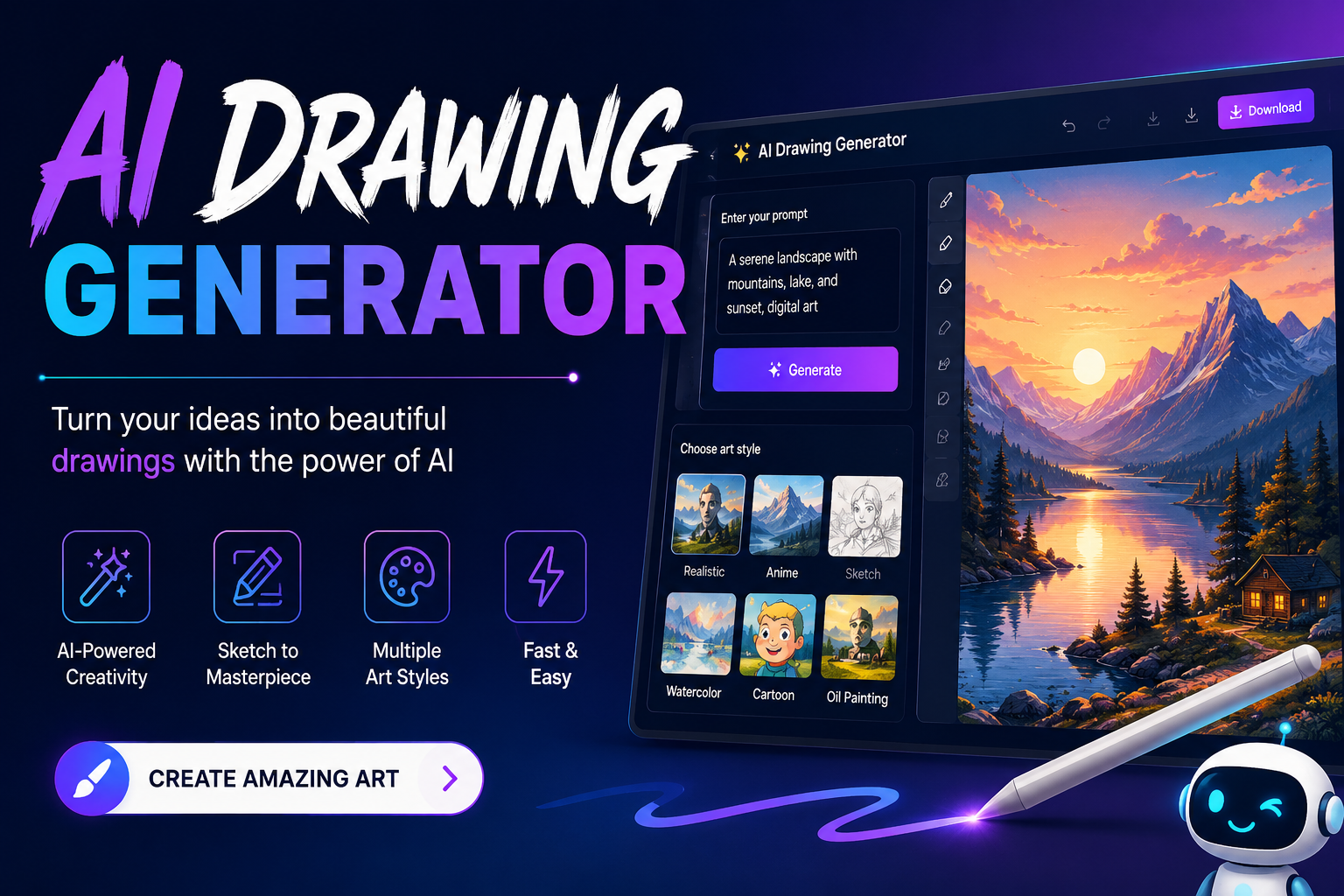
An AI drawing generator makes it possible to create drawings, sketches, illustrations, and artwork from a simple text prompt or an existing image. You do not need advanced drawing skills to get started. Describe what you want, choose a style, and the AI can turn your idea into a visual result within seconds.
Modern AI drawing tools can create pencil sketches, anime characters, cartoon illustrations, line art, concept drawings, realistic artwork, and more. Some also let you upload a rough sketch or photo and transform it into a polished drawing.
The best tool depends on what you want to create. A beginner may prefer a simple free AI drawing generator, while an artist may need better image-to-image controls, style options, or higher-resolution output. This guide explains how these tools work, what you can create, how to write better prompts, and which features matter when choosing an AI drawing tool.
What Is an AI Drawing Generator?
An AI drawing generator is a software tool that uses artificial intelligence to create drawings or illustrations based on instructions. Most tools allow you to enter a text description, while others can work with uploaded images, sketches, or reference pictures.
For example, you could enter:
“A detailed pencil sketch of a mountain cabin surrounded by pine trees, soft graphite shading, realistic hand-drawn texture.”
The AI interprets the description and generates an image matching the requested subject and style.
Unlike traditional drawing, where you create every line manually, an AI drawing generator handles much of the visual production. You can then refine the result by changing the prompt, adjusting settings, or editing the generated image.
How Does an AI Drawing Generator Work?
Text-to-Drawing
Text-to-image generation is the simplest workflow. You describe the subject, appearance, style, background, and other details in a prompt.
A short prompt might create a basic result, while a detailed prompt gives the AI more information about what you expect.
Sketch-to-Image
Some AI tools can transform a rough sketch into a more developed image. You might draw a simple character, house, vehicle, or landscape and use AI to add realistic details.
This is useful for artists, designers, students, and anyone who has an idea but cannot create a polished drawing manually.
Image-to-Drawing
You can also use an existing photo or image as a reference. The AI can transform it into a pencil sketch, cartoon, anime illustration, ink drawing, or another style.
For example:
Photo → AI drawing generator → Pencil sketch
This workflow is especially useful when you want to create stylized portraits or illustrations from existing images.
Style Transformation
AI can also change the visual style of an image. A basic drawing can become a watercolor illustration, comic-style artwork, digital painting, or clean line art.
What Can You Create With an AI Drawing Generator?
The biggest advantage of an AI drawing generator is its flexibility. You can experiment with many different artistic styles without learning every technique manually.
Pencil Drawings
Use prompts containing words such as graphite, pencil shading, fine lines, textured paper, and hand-drawn to create traditional-looking pencil artwork.
Cartoon Drawings
AI can create simple cartoon characters, humorous scenes, children’s illustrations, and colorful animated-style artwork.
Anime Drawings
Anime-style prompts can produce characters with expressive eyes, detailed clothing, stylized hair, and dramatic compositions.
Character Drawings
You can describe a character’s appearance, clothing, pose, personality, environment, and expression to develop concept artwork.
Line Art
Line-art generation is useful for illustrations, coloring pages, logos concepts, tattoos, comics, and minimalist artwork.
Concept Art
Writers, game designers, filmmakers, and artists can use AI drawings to visualize characters, environments, buildings, vehicles, and fantasy worlds.
Coloring Pages
A simple black-and-white line drawing can be useful for children’s activities, educational projects, printable worksheets, and creative exercises.
Best AI Drawing Generators
The right AI drawing tool depends on your goal rather than popularity alone. When comparing tools, consider drawing quality, prompt accuracy, available styles, editing features, free access, image-to-image capabilities, and output quality.
| AI Drawing Tool Type | Best For | Free Access | Image-to-Image | Drawing Styles |
| General AI image generator | All-purpose drawings | Often limited | Usually | High |
| Sketch-to-image tool | Turning sketches into artwork | Varies | Yes | High |
| AI art generator | Creative illustrations | Often limited | Usually | Very high |
| Design-focused AI tool | Graphics and illustrations | Often limited | Yes | High |
| AI drawing app | Quick mobile creation | Usually limited | Varies | Moderate to high |
Rather than choosing a generator solely because it is advertised as the “best,” look at whether it supports your specific workflow.
If you want realistic drawings, prioritize prompt accuracy and detail. If you want sketches, look for strong sketch-to-image controls. For anime or cartoons, style flexibility is more important.
Which AI Is Best for Image Generation for Free?
There is no single free AI image generator that is best for everyone. The right choice depends on how many images you need, what styles you want, and whether you need advanced editing.
A free AI drawing generator is useful for experimenting, creating simple illustrations, testing prompts, and learning how AI image generation works.
Before choosing a free tool, check:
- Number of free generations
- Daily or monthly limits
- Image resolution
- Watermarks
- Account requirements
- Available drawing styles
- Image editing features
- Commercial-use restrictions
A tool offering unlimited free generations may have lower resolution or fewer controls, while a service with free credits may provide better output but limit how often you can generate images.
How to Use an AI Drawing Generator
Creating a drawing with AI is usually straightforward.
Step 1: Choose Your Tool
Select an AI drawing generator that supports the style or workflow you need.
Step 2: Decide What You Want to Create
Be specific about the subject. Instead of “a dog,” describe the dog, setting, pose, and mood.
Step 3: Choose a Drawing Style
Mention whether you want a pencil sketch, cartoon, anime illustration, ink drawing, watercolor, line art, or realistic artwork.
Step 4: Add Visual Details
Describe clothing, colors, facial expressions, objects, textures, lighting, and background elements.
Step 5: Generate the Drawing
Enter your prompt and review the results.
Step 6: Refine the Prompt
If the output is not right, change the instructions rather than accepting the first result.
Step 7: Download or Edit
Once you have a suitable drawing, use the available editing or enhancement tools before exporting it.
How to Write Better AI Drawing Prompts
Prompt quality can make a major difference. A useful formula is:
Subject + Drawing Type + Style + Details + Composition + Lighting + Background + Quality
For example:
Basic prompt:
A cat sitting on a chair.
Better prompt:
A detailed graphite pencil drawing of a fluffy cat sitting on a wooden chair, fine hand-drawn lines, realistic fur texture, soft shadows, natural window lighting, lightly textured paper background.
The second prompt gives the AI much more visual information.
Try to describe the result you want instead of simply naming an object.
15 AI Drawing Prompts to Try
Here are practical prompts you can adapt:
- Pencil portrait: A realistic graphite pencil portrait with detailed facial features, fine shading, textured paper, and natural lighting.
- Fantasy landscape: A detailed hand-drawn fantasy castle on a mountain surrounded by clouds and pine forests.
- Anime character: A detailed anime character wearing futuristic clothing, expressive eyes, dynamic pose, and clean line art.
- Cartoon dog: A playful cartoon dog wearing a raincoat, bold outlines, simple shapes, and a colorful background.
- Botanical drawing: A detailed botanical pencil illustration of roses with delicate leaves and fine linework.
- City sketch: A hand-drawn urban street scene with historic buildings, pedestrians, and detailed architectural lines.
- Fantasy creature: A detailed pencil drawing of a mythical dragon with textured scales and dramatic lighting.
- Architectural sketch: A professional architectural concept sketch of a modern glass house surrounded by trees.
- Comic character: A comic-book hero in an action pose with dramatic linework and dynamic perspective.
- Coloring page: A clean black-and-white coloring page showing animals playing in a forest.
- Fashion sketch: A professional fashion illustration showing a modern outfit with elegant hand-drawn lines.
- Vintage illustration: A vintage ink drawing of an old train station with detailed textures and classic crosshatching.
- Product concept: A detailed concept sketch of a futuristic electric vehicle from multiple visual angles.
- Minimalist line art: A simple continuous-line drawing of a person sitting beside a window.
- Nature sketch: A realistic pencil drawing of a peaceful waterfall surrounded by rocks, trees, and soft atmospheric shading.
Can You Turn a Sketch Into an Image With AI?
Yes. Sketch-to-image is one of the most useful AI drawing workflows.
Start with a rough drawing that establishes the basic composition. Upload it to a compatible tool, describe what you want the finished image to look like, and generate variations.
For example, a rough drawing of a house can become:
A realistic modern wooden cabin surrounded by snow-covered pine trees, warm interior lighting, detailed architectural rendering.
The original sketch provides the basic structure while the prompt supplies the desired appearance.
This can be useful for turning:
- Doodles into illustrations
- Character sketches into finished artwork
- Product sketches into concepts
- Rough buildings into visualizations
- Simple landscapes into detailed scenes
Can You Turn a Photo Into a Drawing With AI?
Yes. Many AI image tools support image-based generation or transformation.
Upload a suitable image and specify the desired drawing style.
For example:
“Transform this portrait into a detailed graphite pencil drawing with realistic facial shading, fine linework, and textured paper.”
You can also request cartoon, anime, watercolor, charcoal, ink, or minimalist line-art effects.
For the most consistent results, use a clear reference image and avoid giving the AI too many conflicting style instructions.
AI Drawing Generator vs. Traditional Drawing
AI drawing and traditional drawing serve different purposes.
| Factor | AI Drawing | Traditional Drawing |
| Speed | Very fast | Usually slower |
| Starting skill | Beginner-friendly | Requires practice |
| Iterations | Quick | More time-consuming |
| Direct control | Prompt and editing based | Direct hand control |
| Styles | Many available | Depends on artist skill |
| Idea exploration | Excellent | Excellent |
| Learning drawing fundamentals | Limited | Strong |
| Personal hand-drawn character | Less direct | Very strong |
AI is especially useful for experimentation and rapid visualization. Traditional drawing remains valuable when precise hand control, artistic technique, and personal expression are the priority.
How to Improve a Bad AI Drawing
Not every generation will be perfect. If the result looks wrong, try changing your prompt.
The AI Ignored Your Prompt
Put the most important subject and characteristics near the beginning of the prompt. Remove unnecessary instructions that conflict with one another.
The Drawing Looks Too Realistic
Add terms such as hand-drawn sketch, pencil illustration, stylized line art, or cartoon drawing.
The Background Is Too Busy
Ask for a plain white background, minimal background, or simple studio background.
The Character Looks Inconsistent
Describe the character’s important features more clearly and use reference-image features when available.
The Drawing Lacks Detail
Mention specific visual details such as textures, shading, line weight, material, lighting, and environment.
AI Drawing Generator Use Cases
For Students
Students can create illustrations for presentations, projects, worksheets, and visual learning materials.
For Artists
Artists can explore compositions, character ideas, environments, and different visual styles before developing their own work.
For Designers
Designers can use AI drawings for early concepts, visual brainstorming, product ideas, and illustration drafts.
For Content Creators
Bloggers and social media creators can produce original visual concepts for articles, posts, thumbnails, and educational content.
For Educators
Teachers can create simple illustrations, activity sheets, visual examples, and coloring pages.
Are AI-Generated Drawings Copyrighted?
Copyright and commercial-use rules can vary depending on the country, the AI platform, its terms, and the amount of human creative contribution involved.
Do not assume that every AI-generated drawing automatically has the same copyright status as a drawing created entirely by a person.
If you plan to sell an AI-generated drawing, use it for a client, publish it commercially, or incorporate it into a product, review the current terms of the specific AI service and the laws applicable to your situation.
How We Evaluate AI Drawing Generators
A useful AI drawing comparison should look beyond marketing claims. Important evaluation factors include:
- Drawing quality
- Prompt adherence
- Style flexibility
- Sketch-to-image performance
- Image-to-image capability
- Editing controls
- Resolution
- Generation speed
- Ease of use
- Free access
- Pricing
- Commercial-use terms
For a fair comparison, use similar prompts across different tools and evaluate the results against the same criteria. This provides a more meaningful assessment than simply comparing feature lists.
Pros and Cons of AI Drawing Generators
Pros
- Create drawings quickly
- Useful for beginners
- Experiment with many styles
- Turn ideas into visual concepts
- Generate multiple variations
- Transform sketches and images
- Useful for creative brainstorming
Cons
- Results can be inconsistent
- Complex prompts may produce unexpected details
- Some tools limit free generations
- Advanced features may require subscriptions
- Commercial-use terms can vary
- Generated artwork may need manual editing
Conclusion
An AI drawing generator gives beginners, artists, designers, students, and content creators a fast way to turn ideas into visual artwork. You can create pencil sketches, anime characters, cartoons, line art, concept drawings, coloring pages, and many other styles from simple instructions.
The best results come from choosing the right workflow and writing specific prompts. If you want maximum control, look for tools that support image-to-image or sketch-to-image generation. If you’re experimenting on a budget, compare free limits and available features before committing to a platform.
Start with a simple idea, describe the style and details clearly, and refine your prompt until the drawing matches your vision.
Frequently Asked Questions
What is an AI drawing generator?
An AI drawing generator is a tool that uses artificial intelligence to create drawings or illustrations from text prompts, reference images, or sketches.
Which AI is best for image generation for free?
The best free option depends on your requirements. Compare free credits, image quality, available styles, resolution, editing features, and usage restrictions before choosing a tool.
Is there a free AI drawing generator?
Yes. Many AI image and drawing platforms offer free credits, trials, or limited free generations. However, free plans may have restrictions on resolution, generation limits, or commercial use.
Can AI create pencil drawings?
Yes. You can create pencil-style artwork by describing characteristics such as graphite shading, fine lines, textured paper, realistic sketching, and hand-drawn details.
Can AI turn a sketch into an image?
Yes. Compatible sketch-to-image tools can use a rough sketch as a structural reference and generate a more detailed illustration based on your prompt.
Can I turn a photo into a drawing with AI?
Yes. Image-to-image AI tools can transform photos into pencil sketches, cartoons, anime illustrations, line art, watercolor artwork, and other styles.
Do I need drawing skills to use an AI drawing generator?
No. Basic drawing skills are not required for text-to-image generation. However, understanding composition, visual styles, and prompt writing can help you produce better results.
You May Also Read: Best AI Video Editing Tools 2026
